
How to Search FDA’s Drugs@FDA Database for Official Drug Information
 Dec, 7 2025
FDA Drug Search Method Advisor
Which search method should you use?
This tool helps you select the best Drugs@FDA search method based on what you know about the drug.
Select your search criteria above and click "Find Recommended Search Method" to see the best approach.
Want to find out when a drug was approved by the FDA? Or check if a generic version is officially authorized? Maybe you’re trying to read the full prescribing label for a medication you or a loved one is taking? The Drugs@FDA database is the official, free, and public source for this information - no subscription, no login, no guesswork needed.
It’s not a marketing site. It’s not a patient forum. It’s the U.S. Food and Drug Administration’s own digital archive of every human drug approved since 1939. Think of it as the FDA’s public record book for medications - complete with approval letters, clinical review summaries, patient guides, and labeling documents. Millions of people use it every month: pharmacists, doctors, researchers, and patients who want to know the real regulatory story behind their medicine.
What You Can Find in Drugs@FDA
Drugs@FDA doesn’t just list drug names. It gives you access to the full regulatory history. For drugs approved since 1998, you’ll see:
- Full prescribing information (the official drug label)
- Approval letters from the FDA
- Review documents written by FDA medical and pharmacology experts
- Correspondence between the FDA and the drug manufacturer
- Patient Medication Guides and Instructions for Use
For older drugs (approved before 1998), the details are more limited - usually just the approval date and basic product info. But even those records are valuable if you’re tracking when a drug first entered the U.S. market.
It covers both brand-name drugs and generics. It includes biologics like insulin and monoclonal antibodies. It even has combination products - like those with two active ingredients in one pill. The database has about 20,000 approved human drug products, and it’s updated every single day.
How to Search: Three Ways to Find What You Need
There are three main ways to search Drugs@FDA. Each one works differently. Using the wrong one can make you miss the drug you’re looking for.
1. Use the Main Search Box (Best for Most People)
Go to www.fda.gov/drugsatfda. You’ll see a big search box right on the homepage. Type in:
- The brand name - like Zestril
- The generic name - like lisinopril
- The application number - like NDA 020363
That’s it. Hit enter. Results appear instantly. The system searches across all fields - brand names, generic names, ingredients, and application numbers - so you don’t need to know which one you’re using.
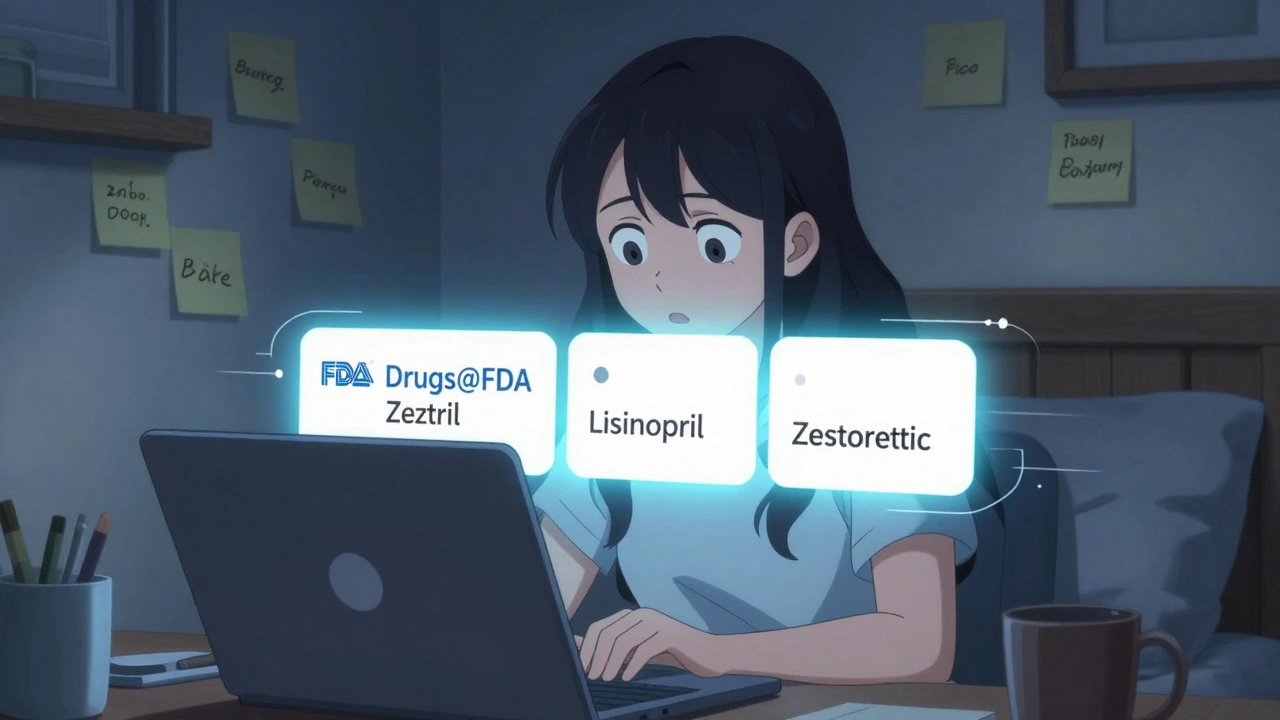
Example: If you search for lisinopril, you’ll see every product containing it - including Zestril, Prinivil, Qbrelis, and combination pills like Zestoretic. That’s the power of the main search. It’s smart. It’s comprehensive. Use this one first.
2. Use the A-Z Index (Use With Caution)
On the left side of the homepage, you’ll see a link labeled “A-Z Index.” Click it. Then choose “Drug Name.”
This is where people get tripped up. The A-Z index only searches established names - that means the generic ingredient, and only the exact match. It doesn’t include brand names or combination products.
So if you search for LISINOPRIL in the A-Z index, you’ll get a list of drugs where lisinopril is the only active ingredient. But you won’t see Zestril, Prinivil, or Zestoretic. Those won’t show up.
Bottom line: The A-Z index is not a substitute for the main search. It’s only useful if you already know the exact generic name and want to see only single-ingredient versions. For most users, skip it.
3. Search by Application Number (For Experts)
If you know the NDA, ANDA, or BLA number - the official FDA application ID - you can search directly by that. These numbers are usually found on the drug label or in regulatory documents.
For example:
- NDA = New Drug Application (brand-name drugs)
- ANDA = Abbreviated New Drug Application (generic drugs)
- BLA = Biologics License Application (biologics like vaccines or monoclonal antibodies)
This method is fastest if you have the number. It’s also the most precise. But unless you’re a pharmacist, researcher, or industry professional, you probably won’t have this info handy.
What You Won’t Find in Drugs@FDA
Drugs@FDA is powerful, but it’s not everything. Here’s what it doesn’t cover:
- Animal drugs - those are in a separate database called Animal Drugs@FDA.
- Patent and exclusivity details - those are in the Electronic Orange Book.
- Deep labeling searches - if you want to find every drug with a specific warning like “BOXED WARNING” or “ADVERSE REACTIONS,” use FDALabel instead.
- Biologics-only data - for vaccines, blood products, and cell therapies, use the Purple Book.
Think of Drugs@FDA as your starting point. It tells you if a drug was approved and when. But if you need to know why it was approved, how it compares to other drugs, or what patents block generics, you’ll need to check other FDA tools.
Why This Matters for Real People
Here’s how this actually helps in daily life:
- A pharmacist checks if a new generic version of a blood pressure pill is truly FDA-approved before dispensing it.
- A patient reads the official label for their diabetes medication and sees a rare side effect they didn’t know about.
- A researcher compiling data on insulin approvals since 2000 pulls exact approval dates from Drugs@FDA for their study.
- A family member verifies that a medication prescribed overseas is legally approved in the U.S. before buying it online.
Before Drugs@FDA, getting this info meant calling the FDA, waiting days for a response, or paying for commercial databases. Now, it’s a few clicks away - and it’s free.
Common Mistakes and How to Avoid Them
Even experienced users make these errors:
- Using the A-Z index instead of the main search - leads to missing brand names and combo drugs.
- Typing in brand names with extra words - like “Lisinopril HCTZ 20/12.5” - instead of just “lisinopril” or “Zestoretic.”
- Assuming all drugs have full documents - drugs approved before 1998 have limited info. Don’t expect review summaries or labels for older products.
- Confusing Drugs@FDA with DailyMed - DailyMed has the same labels, but only the text. Drugs@FDA gives you the approval history, too.
Pro tip: If you can’t find a drug, try searching by the active ingredient instead of the brand name. Or try a different spelling - sometimes the FDA uses slightly different naming conventions.
How This Fits Into the Bigger Picture
Drugs@FDA is part of a larger system of FDA databases that work together. The FDA has been improving these tools since the early 2000s, and today they’re more connected than ever. For example, if you’re looking at a drug label in FDALabel, you’ll now see direct links to the same drug’s page in Drugs@FDA. That means you can jump from the label text to the approval documents in one click.
Over 500,000 people use Drugs@FDA each month. It’s not just for experts. It’s for anyone who wants to understand what’s in their medicine and how it got there. The FDA designed it to be transparent - because patients deserve to know the truth about their drugs.
Next Steps: What to Do After You Find a Drug
Once you find your drug in the results, click on the product name. You’ll see a list of documents. Look for:
- “Product Information” - this is the official prescribing label.
- “Approval Package” - this includes the FDA’s review and approval letter.
- “Patient Medication Guide” - the easy-to-read version for patients.
Download or print what you need. You can use this information to talk to your doctor, verify prescriptions, or even file a report if something seems off.
And if you still can’t find what you’re looking for? Try searching the same drug name in FDALabel or the Electronic Orange Book. They’re complementary tools. Use them together for the full picture.
Anna Roh
December 7, 2025 AT 20:46Iris Carmen
December 9, 2025 AT 00:34Andrea DeWinter
December 10, 2025 AT 15:54Tejas Bubane
December 12, 2025 AT 08:50Morgan Tait
December 13, 2025 AT 07:35Ryan Brady
December 13, 2025 AT 21:42Simran Chettiar
December 14, 2025 AT 14:47Larry Lieberman
December 16, 2025 AT 08:28Shubham Mathur
December 18, 2025 AT 00:30Evelyn Pastrana
December 19, 2025 AT 20:17Arun Kumar Raut
December 21, 2025 AT 08:28Angela R. Cartes
December 21, 2025 AT 18:50